

Applies to: SharePoint Online
Description
Document Intelligence action is required to extract the content of the documents and save them in a target location which is further used by copilot.
Pre-requisites:
Users generally need an Azure subscription to set up and use Azure services. User needs permission to create Azure resources and to deploy models for Azure Open AI.
Please refer below article to create Azure Services:
Instructions to create Azure Services – Crow Canyon Software Support
Copilot can work with different data sources; prerequisites vary based on the type of data source that is used to generate the answers.
Please refer below article to set up Document Intelligence Connection.
AI Connection Settings in NITRO Site Settings – Crow Canyon Software Support
Configuration of Document Intelligence Action
List used: ‘Knowledge Base’ list in Helpdesk application
Knowledge Base’ list stores all the documents. Document Intelligence action is required to extract the content of the documents and save them in a target location. Target location can be ‘Current Item’, ‘Variable’, ‘Azure AI Search’ or a’ SharePoint List’.
- The following Custom Action is configured on the ‘Knowledge Base’ list in the NITRO Helpdesk application
Navigate to Helpdesk Application -> Application Administration in Top Link bar -> Advanced Section in left side -> Crow Canyon NITRO Apps -> Crow Canyon NITRO Studio -> Click Custom Actions -> Select list -> Drag and drop Document Intelligence custom action under Actions section to the designer part
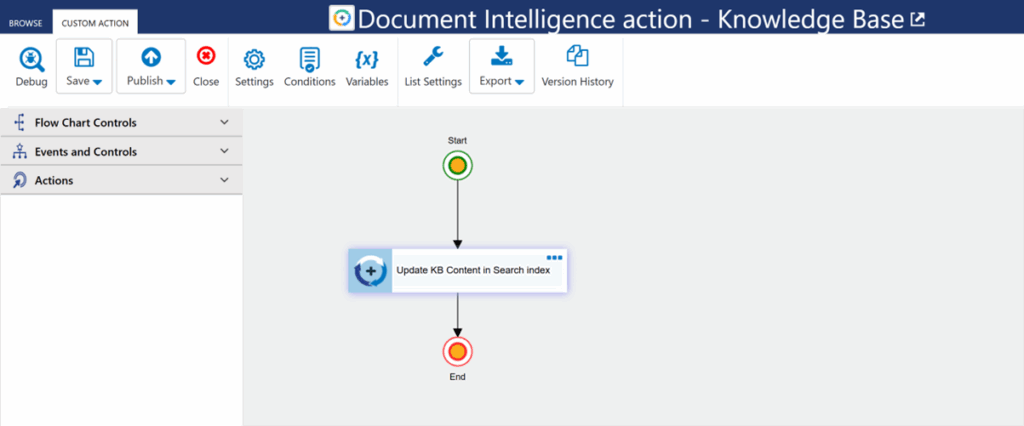
Action settings:
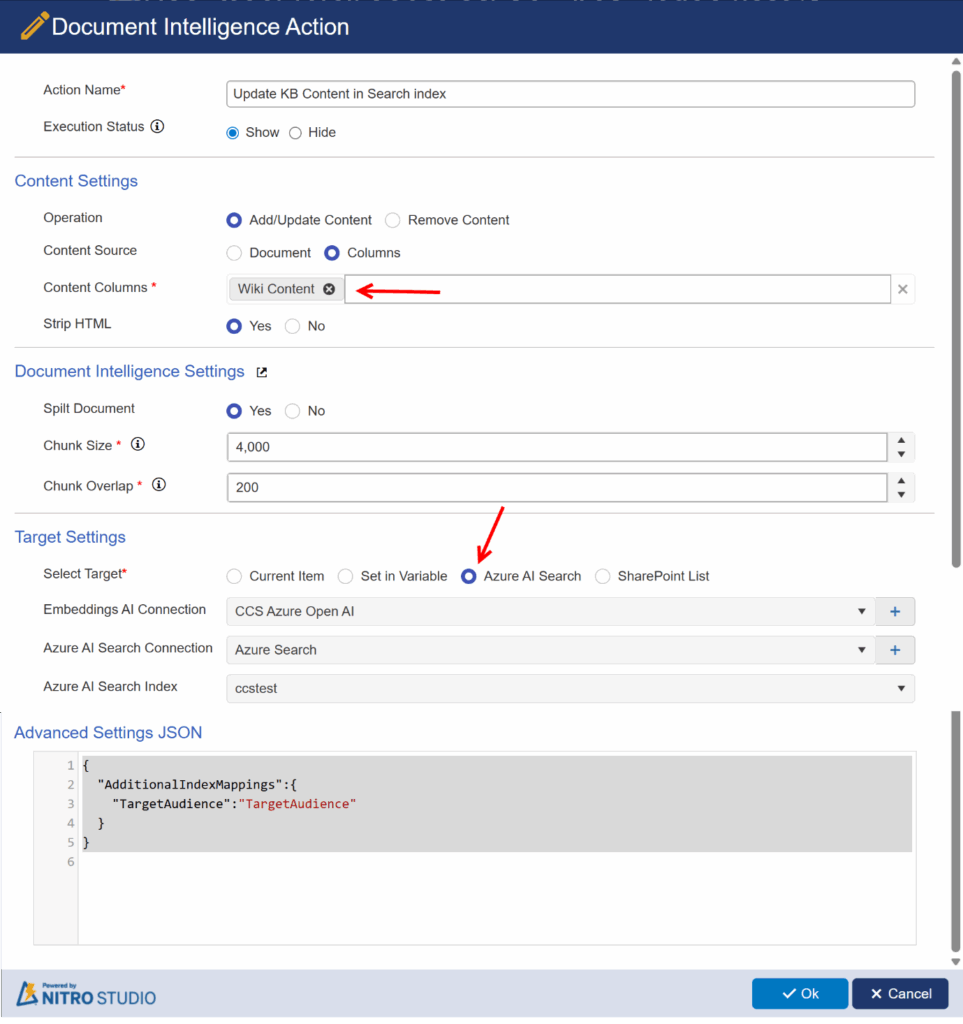
General Settings:
Enter an action name and select execution status whether to show or hide this action from user during execution. This does not affect action execution, it only changes the visibility to the user.
Content Settings:
Operations:
Add/Update Content:This option adds/Update the content from Knowledge Base list in target location for the copilot
Remove Content: This option removes the content so that content is not used in copilot.
Content Source: Select the source of the content, either a document or any multi-line text column. If custom action is configured on a custom list, it will ask for a file name for the document option.
Content Columns: One or more columns selected for processing and indexing.
Strip HTML: Option to remove HTML tags from column content before processing.
Document Intelligence Settings:
AI Connection: Select the Document Intelligence connection configured in NITRO Site Settings. If no connection is configured yet, click the plus ‘+’ icon to configure one. This column will be visible only when Content Source is selected as ‘Document’ in Content Settings section.
Split Document: select ‘yes’ if you want to split the document. The ‘Chunk Size’ and ‘Chunk Overlap’ columns will be visible if the split document is selected.
Chunk Size: The entered number will show the maximum number of characters in each chunk of the document after splitting.
Chunk Overlap: It determines how much chunks overlap with each other. It is used to give continuity and preserve the meaning of text in the chunks.
Target Settings:
Select Target: Choose where the data extracted from the documents should be stored.
Current Item: Use this option to extract the content from the document and put it in some multi-line text column of the current item for later use. This option will be disabled in the case of the Split Document option because it is not possible to store multiple document data in single target column. In current item, we can store data from one document in target column. Creating multiple columns to store multiple documents data is not a valid option as the target ‘Text column’ doesn’t support the selection of multiple columns.
Set in Variable: This option can be used in scenarios where the user wants to extract the data from the document and store it in a variable. The variable can then be used for example to send data by email by send mail action template. This option will be disabled in the case of the Split Document option.
Azure AI Search: Use this option to store the data extracted from documents in Azure AI Search as an index. When a user makes a query, NITRO copilot will use the index to give more relevant results.
SharePoint List: Use this option to store the data extracted from a document in a multi-line text column of a list.
Embeddings AI Connection: Select the Embeddings AI connection configured in NITRO Site Settings. If no connection is configured yet, click the plus ‘+’ icon to configure one.
Azure AI Search Connection: Select the Azure AI Search connection configured in NITRO Site Settings. If no connection is configured yet, click the plus ‘+’ icon to configure one.
Azure AI Search Index: Select the search index from the dropdown.
For more information please refer Document Intelligence documentation – Quickstarts, Tutorials, API Reference – Azure AI services | Microsoft Learn
