Applies to: SharePoint Online
Description
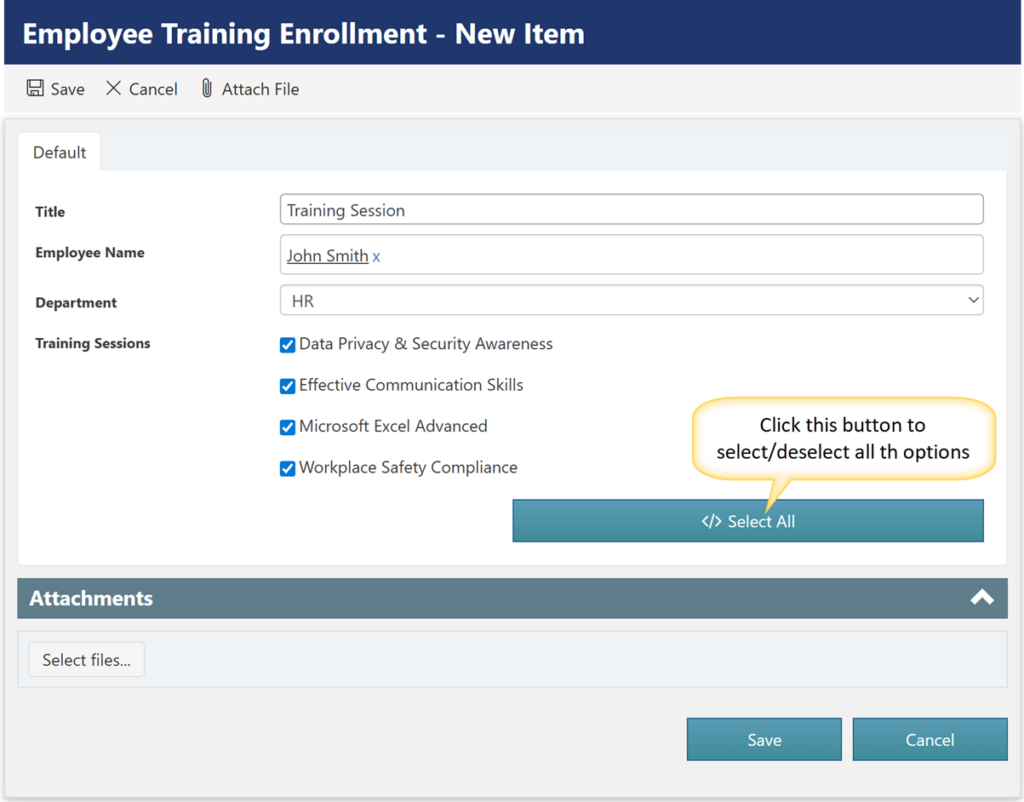
This article explains how to add a custom “Select All” button next to a multi-select lookup column in Crow Canyon NITRO Forms. By clicking this button, users can select or deselect all the lookup column options in single click, improving form efficiency and user experience. The guide provides step-by-step instructions, including where to configure the script action and how to add the JavaScript code to achieve this functionality.
Detailed steps
Step 1: Open NITRO Forms Designer
Navigate to NITRO Forms designer for the list -> Expand ‘Actions’ section from the left panel -> Add ‘Script Action’ button on to the form.
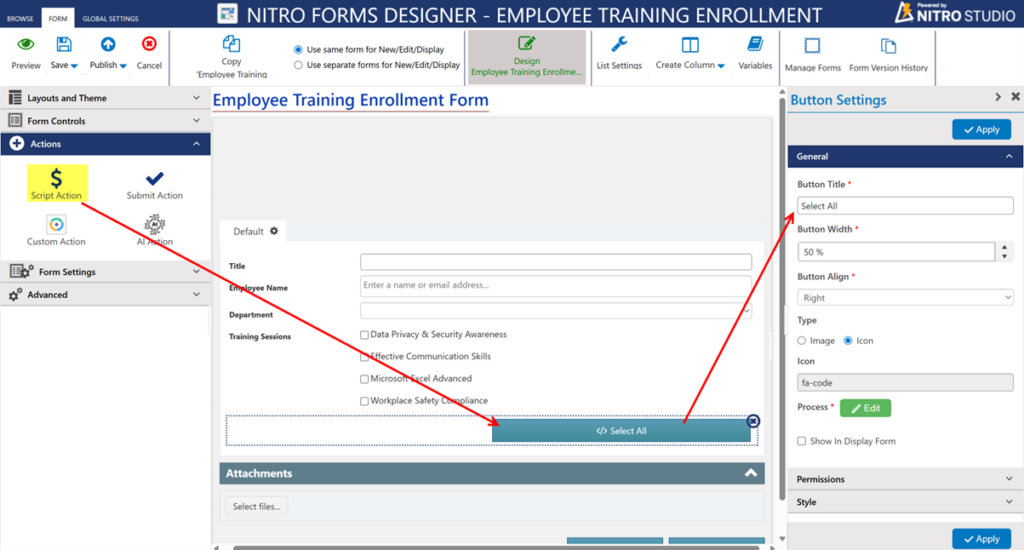
Step 2: Edit the Script Action
Select the Script action button -> Click ‘Edit’ button beside ‘Process’ from the ‘Button settings’ panel.
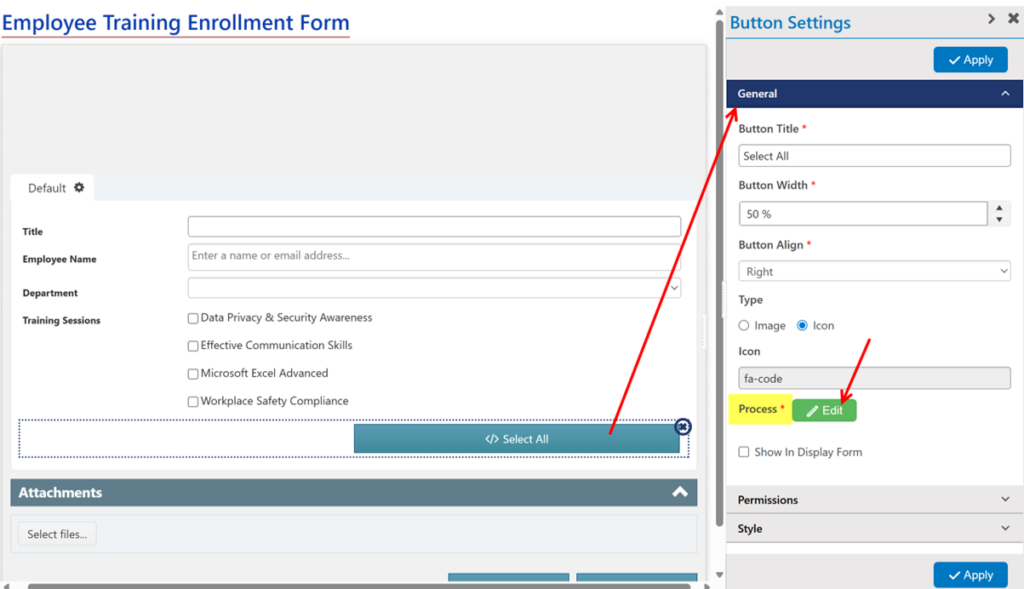
Step 3: Add the Script
Paste the following script into the Script action editor:
function areAllChecked(fieldName) {
    var checkboxes = $('#ccs_control_' + fieldName + ' .CCS_CB_' + fieldName);
	if (checkboxes.length === 0) return false;

    var allChecked = true;
    checkboxes.each(function () {
        if (!this.checked) {
            allChecked = false;
            return false; // break out of .each()
        }
    });
    return allChecked;
}

function toggleAllCheckboxes(fieldName) {
    if (areAllChecked(fieldName)) {
        // All are checked => uncheck all
        formContext.setColumnControlValueByName(fieldName, []);
    } else {
        // At least one unchecked => check all
        var checkboxes = $('#ccs_control_' + fieldName + ' .CCS_CB_' + fieldName);
        var itemIds = [];

        for (var i = 0; i < checkboxes.length; i++) {
            itemIds.push($(checkboxes[i]).attr("itemid"));
        }

        formContext.setColumnControlValueByName(fieldName, itemIds);
    }
}

toggleAllCheckboxes("LookupColumnInternalName");

functionCallback();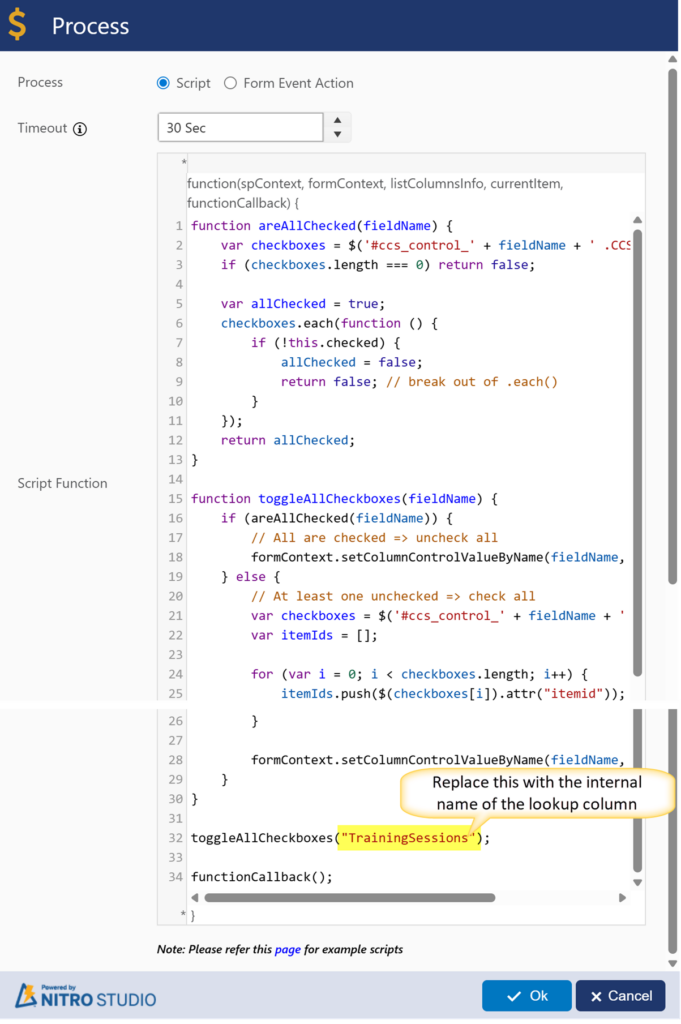
Step 4: Publish and test
After pasting the script -> Click Ok -> Click ‘Apply’ -> Publish the NITRO forms.
Sample output