

Microsoft is rolling out stronger Content Security Policy (CSP) enforcement for SharePoint Online starting March 1, 2026. CSP is a set of rules that a website sends to your browser. It defines what page is allowed to load and run. These rules typically focus on resources such as JavaScript, CSS, images, frames, and connections to external services.
Crow Canyon is actively working on code changes in NITRO Studio to comply with Microsoft CSP rules. Majority of the code is already compliant, however, there are few pending areas like where NITRO components use dynamic scripting. These changes are planned to be completed by end of March 2026.
In the meantime, please follow the steps below in your SharePoint Online tenant to fix issues due to CSP rollout.
There are two ways to make the changes
- Using NITRO Studio: This is possible only if NITRO API permissions are granted during NITRO installation. If NITRO Site API permissions are not granted, then follow the second method.
- Use the SharePoint admin center and PowerShell. These steps require SharePoint admin role in Office 365 tenant.
Using NITRO Studio
- Navigate to https://crowcanyonnitro.azurewebsites.net/
- It will auto-navigate to https://crowcanyonnitro.azurewebsites.net/NITRO page if NITRO API permissions are granted.
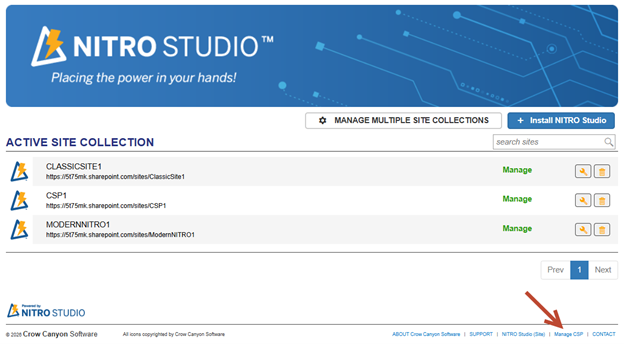
- Check if ‘Manage CSP’ link is available in the page footer. Else, follow the steps in next sections.
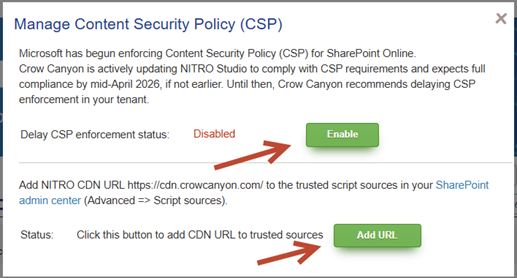
- Click ‘Manage CSP’ link and in the pop-up:
- Click ‘Enable’ to enable CSP enforcement delay in the SharePoint sites.
- Click ‘Add URL’ to add NITRO Studio CDN URL to trusted sources.
If NITRO API permissions are not granted, please follow the steps below.
Add NITRO Studio CDN URL to trusted script sources
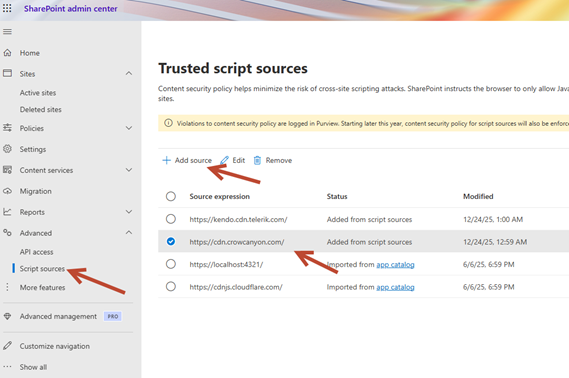
- Navigate to SharePoint admin portal.
- Click ‘Add Source’ and add below URLs as trusted source:
- https://cdn.crowcanyon.com/
- https://appscdn.azurewebsites.net/
- https://cdnjs.cloudflare.com/
- Note that for GCC/dedicated NITRO Studio customers, add the URLs as per the CDN configured in your setup.
3. Clear browser cache before accessing NITRO Studio site pages.
Delay Content Security Policy enforcement in your tenant
- Microsoft page for more information: https://learn.microsoft.com/en-us/sharepoint/dev/spfx/content-securty-policy-trusted-script-sources
- Install SharePoint Online Management Shell
- Download URL: https://www.microsoft.com/en-in/download/details.aspx?id=35588
- If you have an older version already installed, then update to latest version
- Launch SharePoint Online Management Shell
- Run command to connect to SharePoint online:
- Connect-SPOService -Url https://yourtenantname-admin.sharepoint.com
- Replace with your tenant name in above URL
- This command will open a login URL, provide credentials for user having SharePoint admin rights.
- For GCC High tenants, please add -Region ITAR to the command: 1. Connect-SPOService -Url https://yourtenantname-admin.sharepoint.us -Region ITAR
- Set-SPOTenant -DelayContentSecurityPolicyEnforcement $true
- This will delay CSP enforcement by 90 days.
- Verify that above is set correctly:
- Get-SPOTenant | Select-Object DelayContentSecurityPolicyEnforcement
- Above should give output ‘True’.
