Applies to: SharePoint Online and SharePoint On-Premises
Description
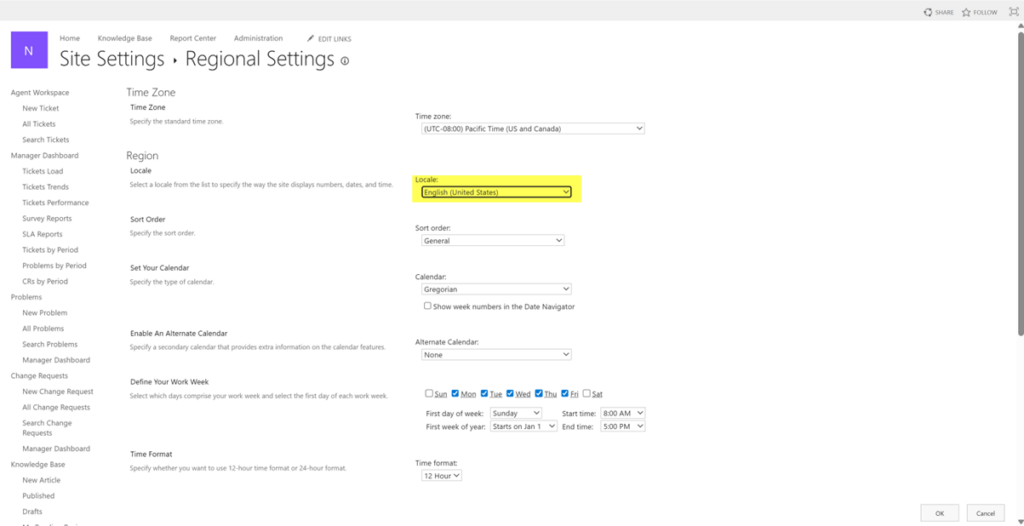
Regional date format should be implemented accurately for maintaining data integrity, preventing critical errors, and enhancing user experience. Localization helps applications remain both globally interoperable and locally relevant, maintaining professional trust and meeting regional legal requirements.
Crow Canyon Applications allow specifying regional settings to format date, currency and number column values and calendar display. This ensures that information is shown in a familiar and correct format for users.
This article explains how to format date based on regional settings. It has an example to reflect region specific date locale in the emails sent via Crow Canyon NITRO Workflow.
Detailed steps
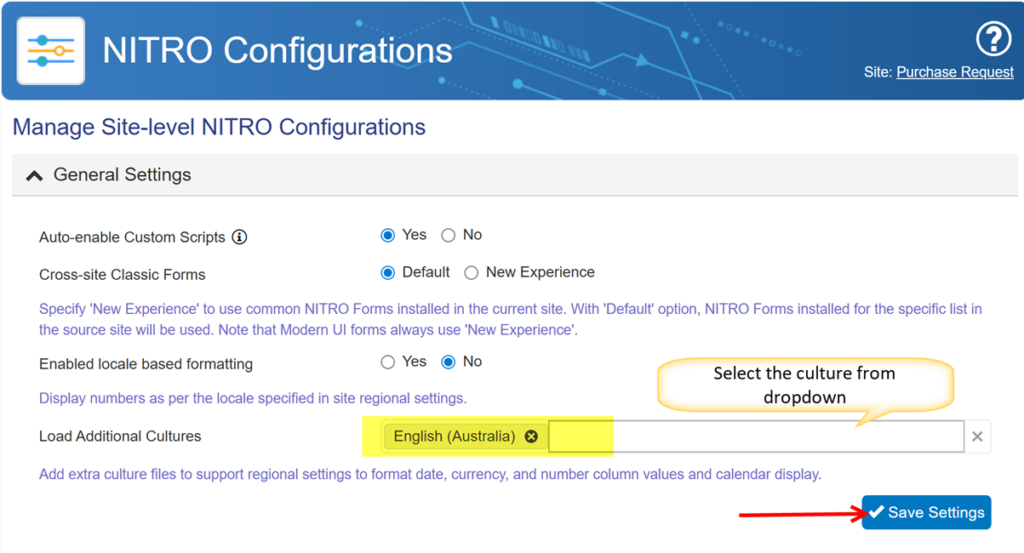
Step 1: Load regional culture in NITRO Site Settings
Navigate to the SharePoint site -> Site Settings -> Under ‘Site Administration’ section, click ‘Crow Canyon NITRO Site Settings’ -> Under ‘General Settings’ section, select the desired culture from ‘Load Additional Cultures’ -> Click ‘Save Settings’.
Example of common cultures
| Culture Code | Region / Language | Date Format Example |
en-US | English (United States) | MM/dd/yyyy |
en-CA | English (Canada) | yyyy-MM-dd |
en-GB | English (United Kingdom) | dd/MM/yyyy |
fr-CA | French (Canada) | yyyy-MM-dd |
fr-FR | French (France) | dd/MM/yyyy |
de-DE | German (Germany) | dd.MM.yyyy |
hi-IN | Hindi (India) | dd-MM-yyyy |
en-IN | English (India) | dd-MM-yyyy |
ja-JP | Japanese (Japan) | yyyy/MM/dd |
en-AU | English (Australia) | DD/MM/YY |
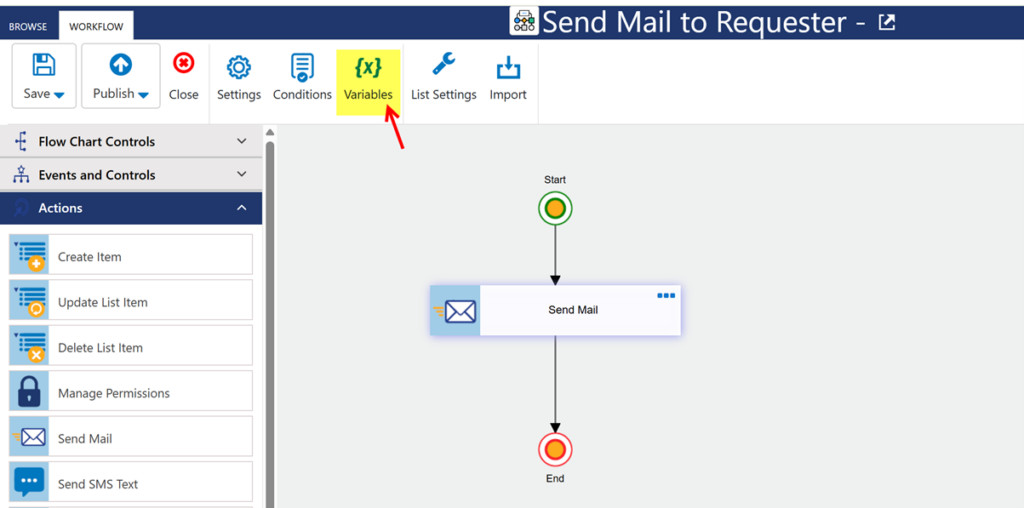
Step 2: Modify the required NITRO Workflow to configure regional date format settings. Edit the required NITRO Workflow that has the ‘Send Mail’ action -> Configure a variable to format the date and time column using ‘Format Value 2’ function.
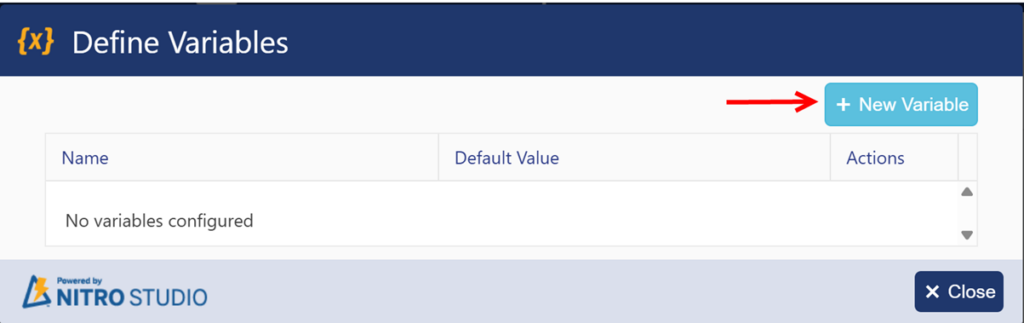
Click ‘New Variable’ to define a variable.
2. Specify default value of the ‘varDate’ variable using expression builder.

Use the following expression format:
- Syntax:
FormatValue2(Currency/DateTime/Number, [placeholder], FormatSpecifier, CultureInfo) - Examples:
- Australia: FormatValue2(DateTime, Assigned Date, {0:dd.MM.yy}, en-AU)
- United Kingdom: FormatValue2(DateTime, Created, {0:dd/MM/yyyy}, en-GB)
- United States: FormatValue2(DateTime, Created, {0:MM/dd/yyyy}, en-US)
- Germany: FormatValue2(DateTime, Created, {0:dd.MM.yyyy}, de-DE)
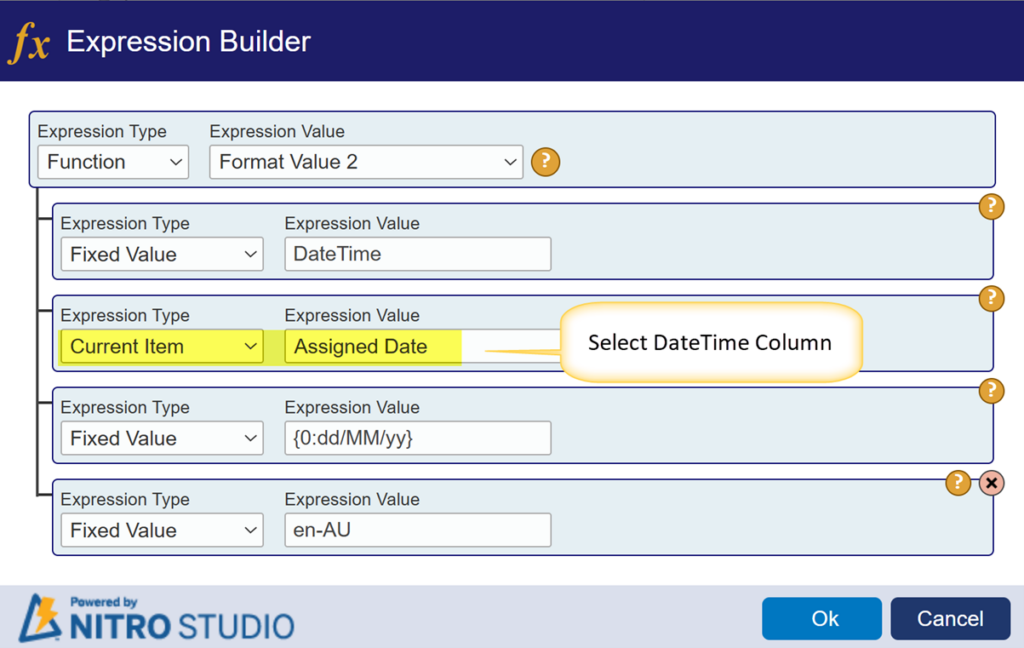
3. Save the variable.
4. Add ‘varDate’ variable placeholder in the ‘Send Mail’ action mail template.
For more details on ‘FormatValue2’ function, refer to this article.
5. Edit the ‘Send Mail’ action -> Edit the required mail template -> Add variable placeholder in the subject and mail body.
Syntax: %%VariableName##value%%
Example: %% varDate##value%%
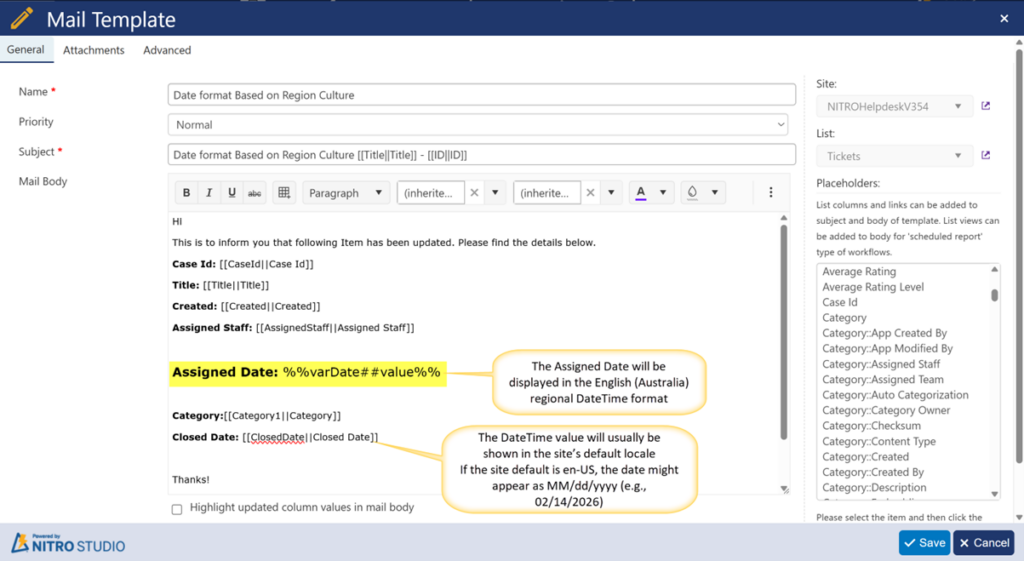
6. Save the mail template -> Save the ‘Send Mail’ action -> Publish the workflow.
Sample Output:
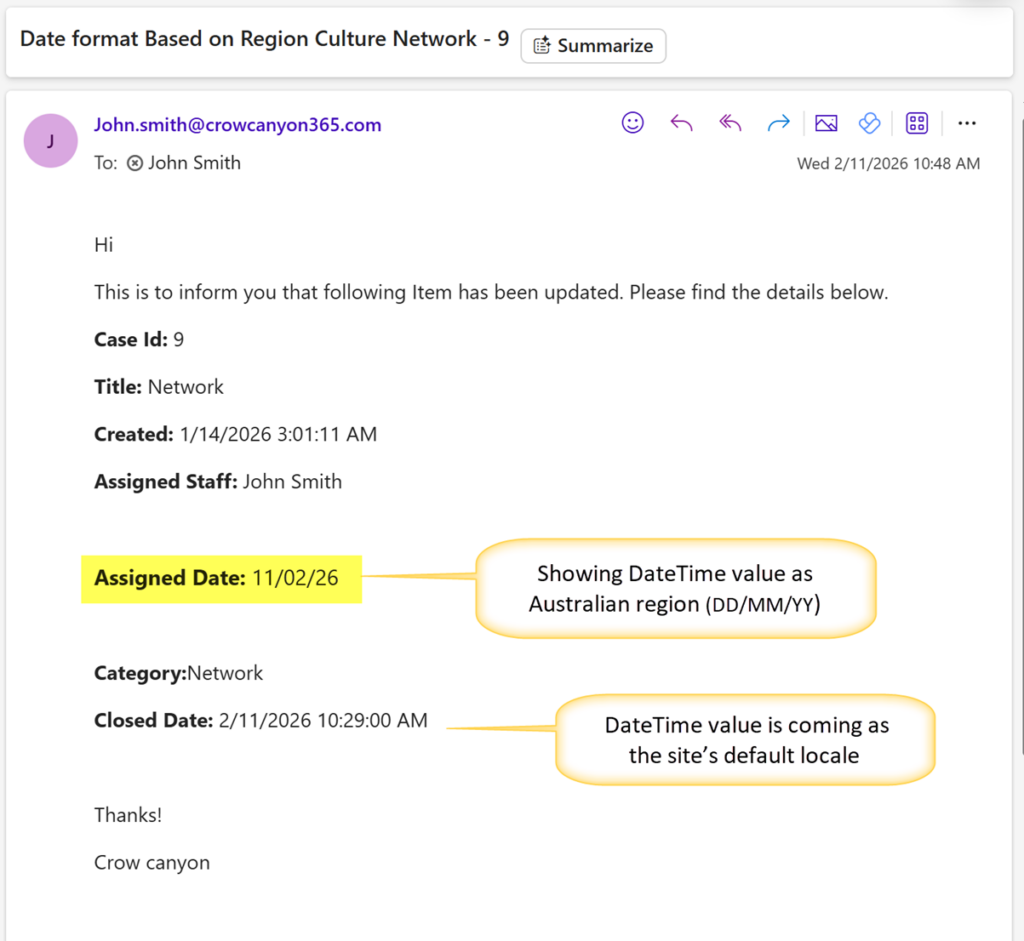
Site regional settings